Banned From Equestria Controls: Movement, Interaction and Input Fixes
Banned From Equestria uses a small point-and-click control vocabulary, but the retired Flash format makes focus, hotspot size and right-click behavior easy to misunderstand. This non-explicit guide explains the controls that matter, the order to test them and the recovery steps that work across the preserved Alpha 1.5 browser player, Ruffle and clearly labeled community packages.

The inputs you actually need
The game does not require a modern controller layout. Most failures come from clicking the wrong layer, missing a small hotspot or applying a desktop instruction to a touch wrapper.
| Action | Primary input | What to look for | If it fails |
|---|---|---|---|
| Move to another screen | Left-click an arrow, edge hotspot or destination | A scene transition or changed background | Click the canvas once, then test the hotspot again |
| Inspect or speak | Left-click the character or object hotspot | Dialogue, a prompt or a changed pose | Move the pointer slowly and try the visible part of the object |
| Advance dialogue | Left-click the active text or continue area | The next line or choice appears | Wait for the line to finish before clicking again |
| Use a context action | Right-click only when the guide or player requires it | A browser menu or Flash context menu boundary | Use the player fallback or desktop Ruffle if touch blocks it |
| Save and replay | Use the visible game save flow or player storage | A named slot or persistent state | Do not clear site data until the save is backed up |
Banned From Equestria controls at a glance
The preserved game is closer to a point-and-click visual novel than to an action game. The mouse pointer is the main control, and the useful question is usually “where is the clickable state?” rather than “which key moves the character?” A left click can select an arrow, open a doorway, inspect a character, advance a line of dialogue or confirm a choice. The same scene may expose different hotspots during the day and night phases, so a correct click can still appear to do nothing when the route condition is not active.
Start every session by letting the player finish its first load. Then click once in the canvas, move the pointer slowly around the scene and look for the cursor or visual response that indicates an active hotspot. Do not fire repeated clicks while a transition is still running. A queue of clicks can skip a line, trigger the next scene before you read the prompt or make a later failure look like a missing control.
Keep focus on the game canvas before diagnosing a bug
Ruffle runs inside a page, so the browser can have focus while the game does not. When that happens, a click may scroll the page, select text or activate a surrounding link instead of reaching the game. The first controls recovery step is simple: click the middle of the canvas, wait one second and then test a large, obvious hotspot. If the canvas responds, continue with slower pointer movement and avoid opening another tab during the transition.
On desktop, browser zoom can make a small Flash hotspot difficult to hit. Return to 100 percent zoom, keep the player fully visible and try a second click near the center of the object. On a phone, the wrapper may scale the whole scene to fit the screen. Rotate only if the player itself supports it; do not assume that a two-finger gesture replaces a right-click or a desktop context action.
Dialogue, objects and small hotspots
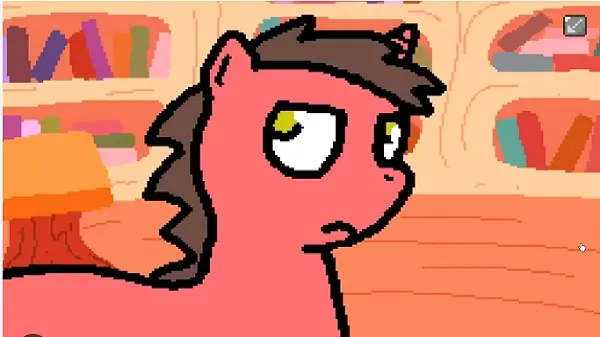
Dialogue advances through a text or continue area that may be smaller than the surrounding panel. Click once after a line finishes, read the new line and wait for a choice if one appears. If nothing happens, move the pointer over the character or the lower edge of the dialogue area instead of clicking rapidly in the center. A delayed response can mean the player is still loading the next frame, not that the route is broken.
Objects often use the same left-click pattern as characters. A book, doorway, sign or inventory-related area may only react after a prerequisite is met. Test the obvious object first, then confirm the current phase, location order and required Bits or item. The Bits and quests guide explains why a purchase or reward can change access without changing the visible control.
Controls change with time, routes and saves
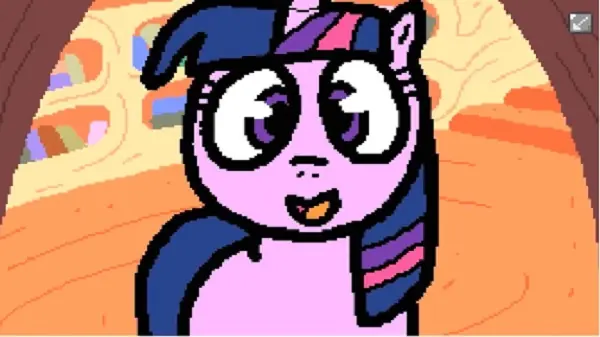
A game control can be correct and still produce no result because the game is tracking time. Day and night phases affect which locations, characters and prompts are available. Before declaring a hotspot missing, write down the current phase, the last completed prerequisite and the version or wrapper you are using. This small log prevents a route condition from being mistaken for a mouse problem.
Use a clean save before a major purchase, a new location or the final night. Keep one baseline slot and one experiment slot. Change one variable per replay: phase, order, item, Bits reserve or package. If two changes happen at once, you cannot tell whether the controls, route or version caused the result. The endings guide follows the same save discipline for route comparisons.
When Banned From Equestria controls stop responding
Work from the least destructive controls test to the most specific one. First check that the game has finished loading and that the click lands inside the active canvas. Next reset zoom, test a large controls hotspot and wait through one complete transition. Then compare the same action in the browser player or desktop Ruffle. Only after those checks should you inspect a package, permissions or storage path. Reinstalling immediately can remove the save and hide the original cause.
If right-click instructions fail, remember that the browser may open its own menu. Use the player’s documented fallback or a desktop Ruffle build when a context action is genuinely required. On touch devices, a long press is not guaranteed to produce the same event. If the route can be completed without that action, use the alternative path and record the limitation instead of disabling browser protections.
- Click the canvas once and wait before repeating an input.
- Use 100 percent browser zoom and keep the full player visible.
- Check day or night phase before assuming a hotspot is missing.
- Keep a baseline save before route or package experiments.
- Compare browser, PC and Android behavior without calling a community wrapper official.
Version boundaries and a practical control checklist
The controls vocabulary described here is based on the preserved Alpha 1.5 browser experience and common Ruffle behavior. Community Android and Windows packages can add scaling, touch controls, fullscreen buttons or altered storage. The BFE-Spanish itch.io page is a traceable community distribution source, but it is not evidence that the original author released an official Android control update. When a package behaves differently, record its visible label and return to the source page rather than copying an APK directory claim.
Before a route attempt, confirm five things: the player finished loading, the canvas has focus, the browser zoom is stable, the current phase matches the guide and a clean save exists. During the attempt, click once, wait for the response and write down each transition. After the attempt, compare the same action in a known reference build if the result is surprising. This checklist is faster than changing several downloads at once.
Banned From Equestria controls FAQ
What are the Banned From Equestria controls?
The preserved game is mainly mouse-driven. Left-click arrows, objects, characters, dialogue and choices; use a right-click only when the specific player or guide requires a context action.
Why does clicking do nothing in Banned From Equestria?
The canvas may not have focus, the game may still be loading, the hotspot may be small or the current day-night phase may not expose that action. Click the canvas once, wait, reset zoom and test a large hotspot before changing packages.
Can I play Banned From Equestria with a keyboard?
Keyboard support depends on the player or community wrapper. Treat advertised shortcuts as wrapper behavior, and use the mouse-first controls in the preserved Alpha 1.5 reference when a shortcut is not documented.
How do I right-click in the browser player?
Use a right-click only for a documented context action. If the browser menu blocks it, try the player fallback or desktop Ruffle; a phone long press is not guaranteed to send the same event.
Why is a hotspot missing at night?
Locations and prompts can depend on the day-night phase, prerequisite order, item state or build. Check the phase and clean save before diagnosing the mouse or installing another APK.